Sequencer and Movie Render Queue
Driving a volume from Sequencer
- Select the volume actor and turn Playing off. While it is on, the component overwrites the keyed value every tick.
- Add the actor to a Level Sequence.
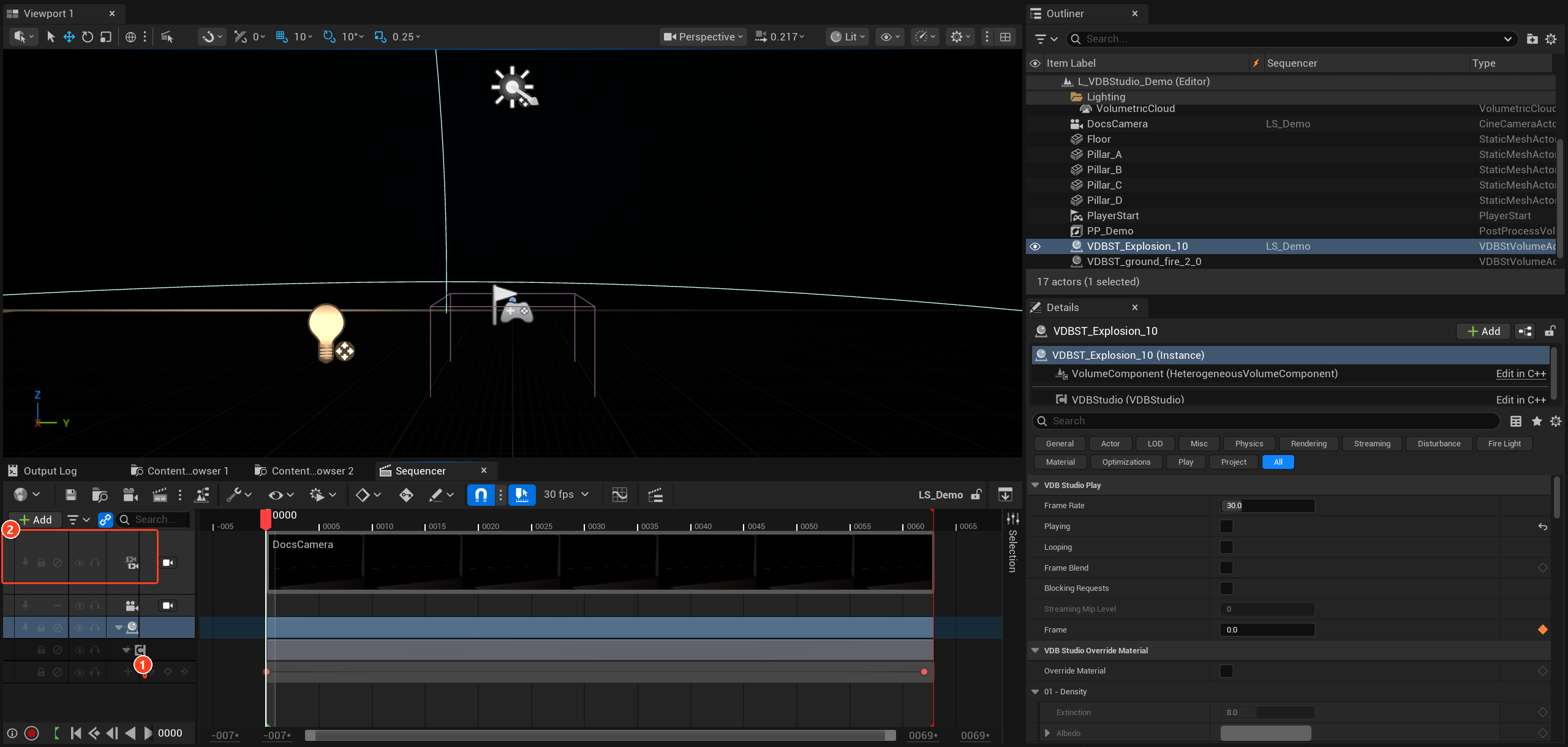
- Add a track for Frame on the VDB Studio component and key it. For a 30 fps sequence, key 0 at the start and the last frame at the end, with linear interpolation.
With Playing off, the component waits for each frame to arrive, so a render never captures an incomplete frame.
Animating the look
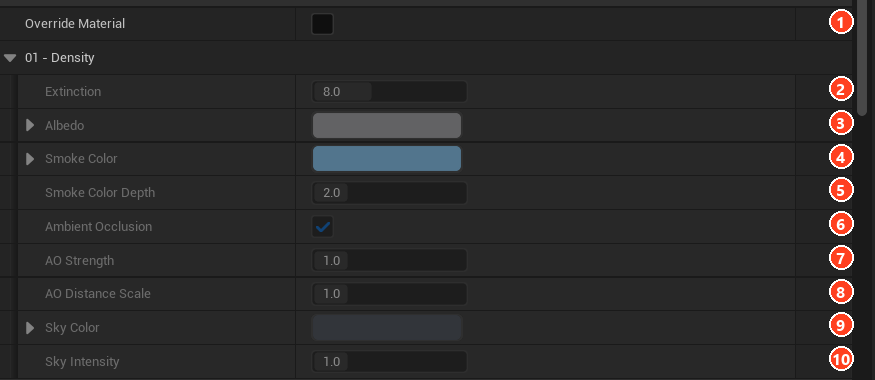
The full list of groups is in the component reference.
Turn on Override Material to key the look from Sequencer without a Material Instance. Enabling it copies the material's current values, so the picture does not change. Extinction, fire brightness, scatter and micro detail controls can all be animated. Static switches and curves cannot.
Older materials need UPDATE MATERIAL before every parameter follows.
Quality presets
The component's Blueprint nodes Apply Gameplay Quality and Apply Cinematic Quality set a group of values at once. Call them from a Blueprint, for example before a render.
| Gameplay | Cinematic | |
|---|---|---|
| Level of Detail | Auto | Full |
| Decode Only Visible Tiles | On | Off |
| Fire Light Shadows | Off | On |
| Step Factor, Shadow Step Factor | 2 | 0.5 |
| Lighting Downsample Factor | 2 | 1 |
Both also turn Frame Blend on. The presets set per-actor values, which save with the level, and engine console variables for the current session only. To keep the console variables in a render, add them to a Console Variables setting in your Movie Render Queue configuration:
r.HeterogeneousVolumes.DownsampleFactor 1
r.HeterogeneousVolumes.MaxStepCount 1024
r.HeterogeneousVolumes.Shadows.Resolution 1024
r.HeterogeneousVolumes.Shadows.MaxSampleCount 16
Rendering
Enable the Movie Render Queue plugin if it is not already on, then open Window > Cinematics > Movie Render Queue. Add the sequence, set an output, and render.
The clip below was rendered this way from a 63-frame sequence.
The numbered Sequencer screenshot shows the Frame track (1) and the Camera Cuts track (2).
Beyond the level itself, the viewer can also produce new assets from a volume.