Presets and Materials
Presets
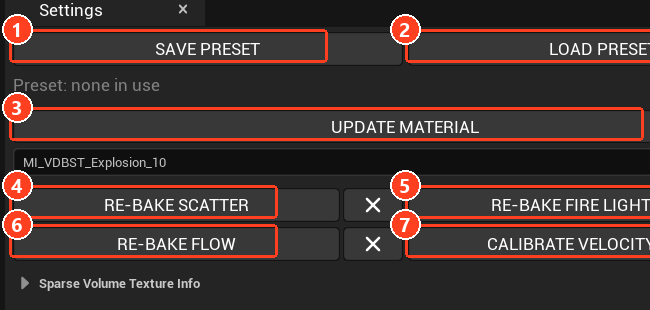
SAVE PRESET (1) stores the current settings as a preset asset and links it to the volume. LOAD PRESET (2) applies one. Use presets to carry a look between volumes, for example a shared smoke look across a set of explosions.
Settings already stored on an asset take priority over its linked preset when the viewer opens. A preset only seeds an asset that has no stored settings.
Creating a material
Press CREATE MATERIAL (3) and choose a location. VDB Studio writes a Volume-domain material from the current settings, plus a linked Material Instance. Each look value becomes a material parameter, so the instance can be adjusted without returning to the viewer.
| Created asset | Purpose |
|---|---|
M_... | The generated Volume material. |
MI_... | A Material Instance of it, linked to the volume. Assign this one in levels. |
T_..._Remap | Lookup texture, present when 03 - Remap curves are used. |
A compressed volume can also create its material from the Content Browser: right-click it and choose Create Material (VDB Studio).
The viewer and the generated material are separate renderers. They use the same data and controls, but a level also has its own lights, exposure and post process, so expect a final adjustment there.
Updating a material
Once a material is linked, the button reads UPDATE MATERIAL and rebuilds that material in place. Run it after changing look values you want carried over, and after any bake. For a linked instance, the parent material is rebuilt and the instance keeps its own values.
The slot under the button shows the linked material. Drop another material or instance there to target it, or clear the slot to return to CREATE MATERIAL.
Switches such as Use Frame Blend or Micro Detail are static switches on the material. They remove unused features from the compiled shader, so turning off what you do not need saves cost. Set them on the Material Instance.
New shaders must compile before a fresh material renders. A volume can stay invisible for a while after CREATE MATERIAL on a project with an empty shader cache.
The material is ready. The next step puts the volume in a level.