Placing Volumes in a Level
Dragging in a volume
Drag a compressed volume from the Content Browser into the viewport. VDB Studio creates a VDB Studio Volume actor using the volume's linked material. If the volume has no material yet, the drop is refused with a message: run CREATE MATERIAL first.
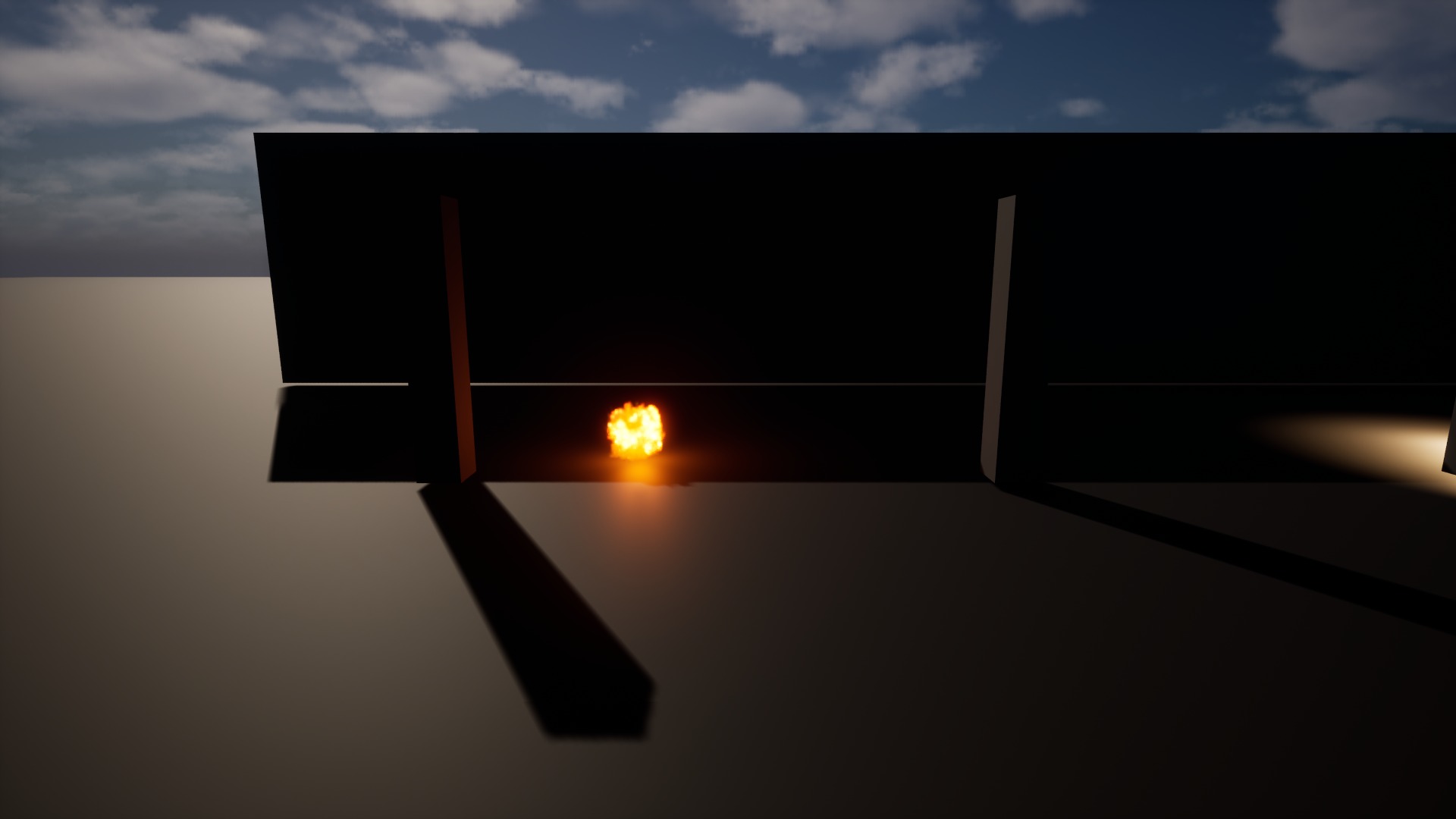
The actor's pivot sits at the corner of the volume's bounds, not its centre. Move it by half the volume's size to centre it on a point.
Using an SVT
Dragging an SVT creates Unreal's standard Heterogeneous Volume. To get VDB Studio's playback features, assign the generated material and add the VDB Studio component to the actor.
The Details panel
Selecting the actor shows the VDB Studio settings directly.
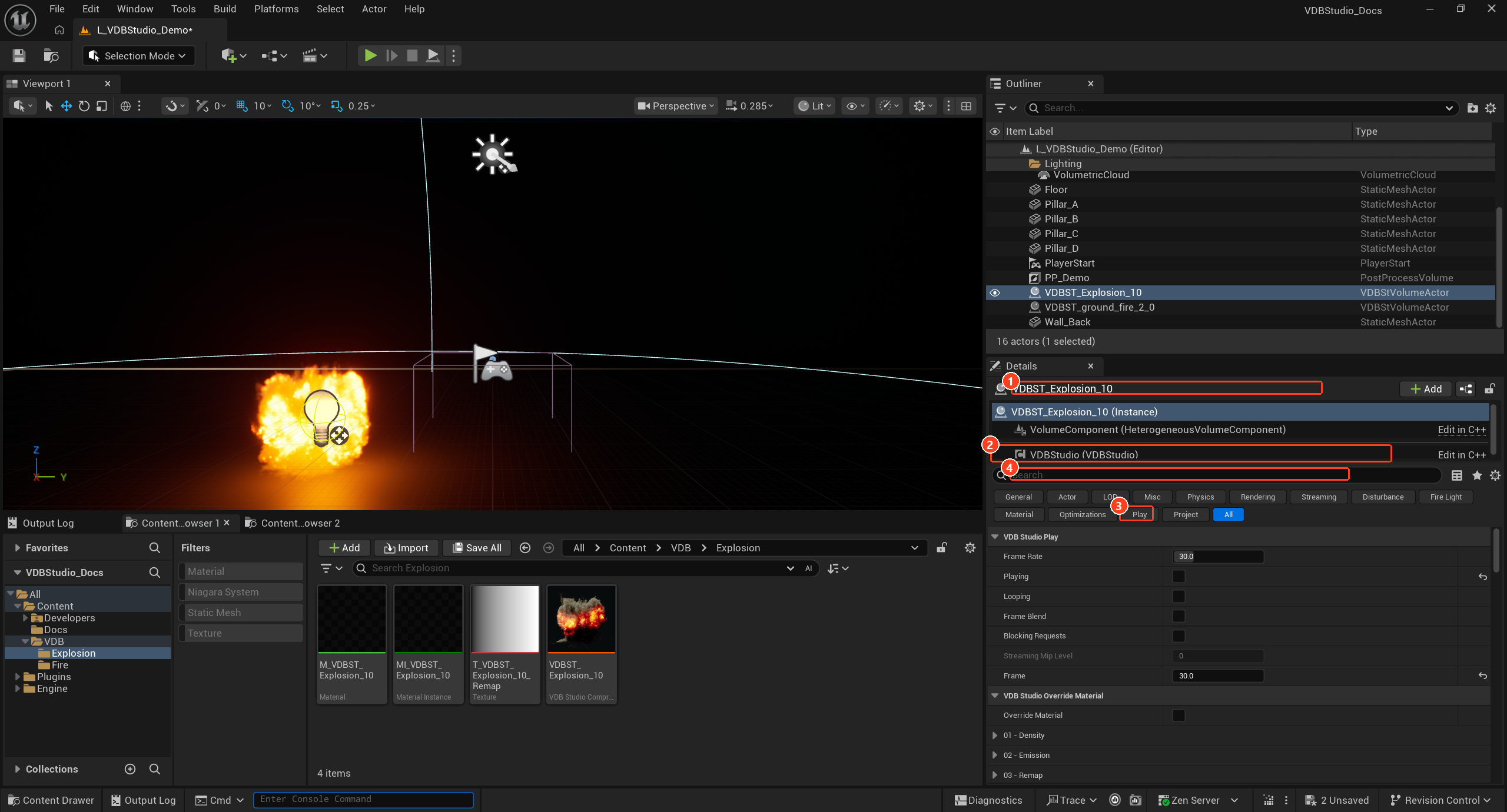
Select the actor in the viewport or Outliner. The Details panel shows its name (1) and the VDB Studio component (2) that holds the settings. Use the section buttons (3) or the search box (4) to find a setting.
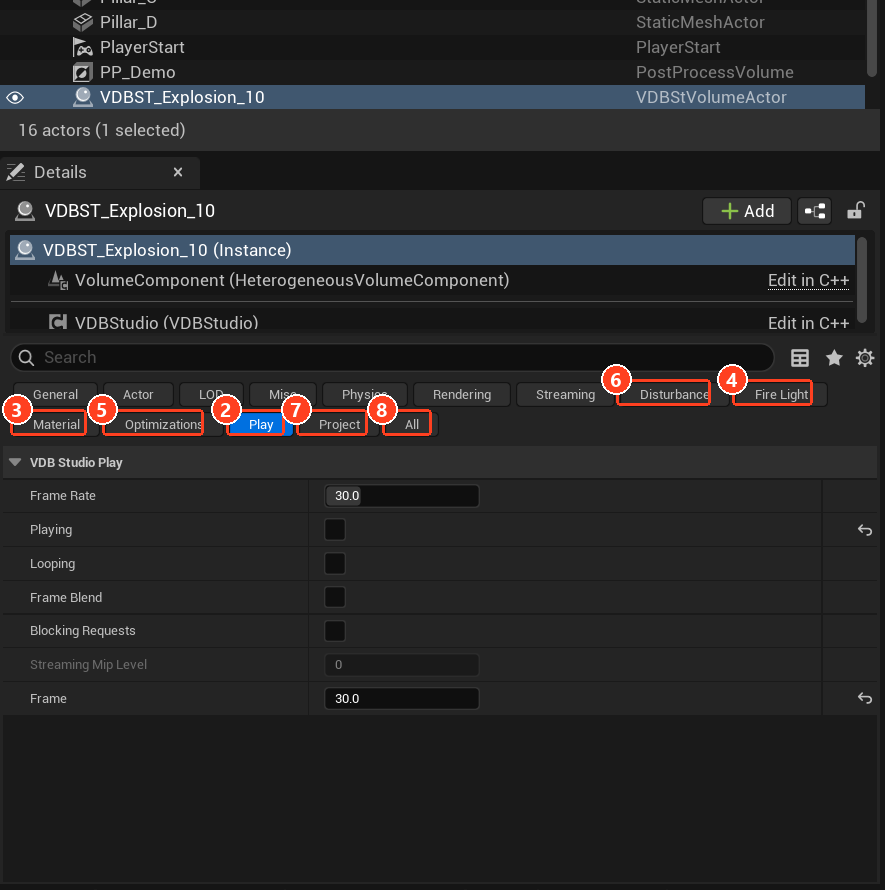
| # | Section | Covers |
|---|---|---|
| 2 | Play | Frame rate, playing, looping, frame blending. |
| 3 | Material | Override Material, for animating the look. |
| 4 | Fire Light | Scene lighting from the fire, and the smoke's lighting channels. |
| 5 | Optimizations | Level of detail, culling, proxies and far effects. |
| 6 | Disturbance | Runtime cuts and pushes. |
| 7 | Project | Project-wide shadow options, under VDB Studio Rendering. |
Adjusting the look in the level
Open the linked Material Instance and change its parameters; every placed volume using it updates. Values use the same units as the viewer.
To make one placed volume differ from the rest, duplicate the instance and assign it to that actor, or turn on Override Material on the component.
Volumes play on their own by default. The next page covers controlling that.