Loops, Clips and Flipbooks
These tools write new assets and leave the original unchanged.
Seamless loops
Under 05 - Loop:
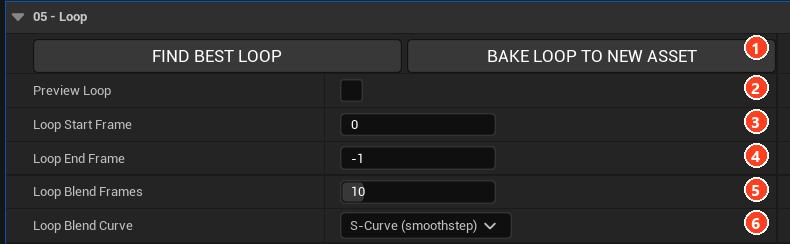
- Set Loop Start Frame (3), Loop End Frame (4) and Loop Blend Frames (5). The tail of the region cross-fades into its head, so the baked loop is that many frames shorter than the region.
- Press FIND BEST LOOP (1) to search the sequence for the region with the cleanest seam. It reports the seam difference.
- Turn on Preview Loop (2) to watch it.
- Press BAKE LOOP TO NEW ASSET, beside the search button.
Loop Blend Curve (6) shapes the cross-fade. A compressed volume with velocity asks whether to keep the velocity grid.
Clipping
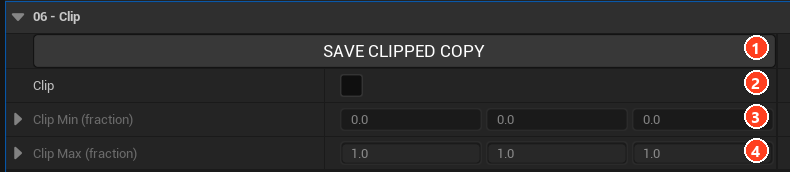
Under 06 - Clip, turn on Clip (2) and set Clip Min (3) and Clip Max (4), as fractions of the volume on each axis. The cut applies live, shadows and glow included. SAVE CLIPPED COPY (1) writes a smaller asset containing only the box.
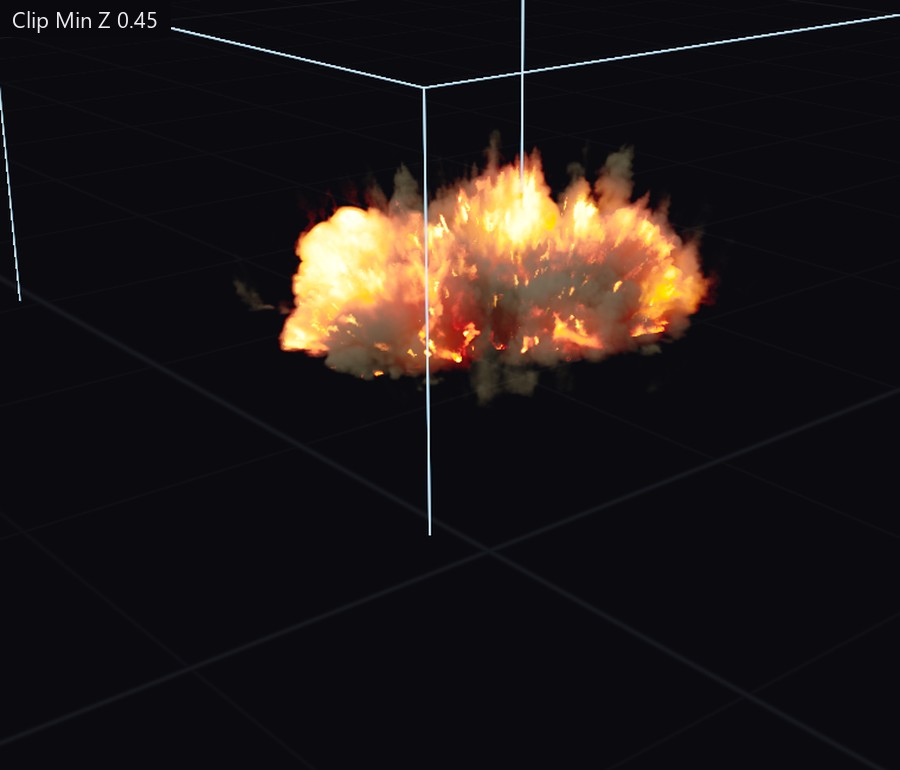
Settings and the preset link carry over. Bakes do not, so run them again on the copy.
Flipbooks
Flipbook on the viewer toolbar records frames onto a grid in one texture, for particle systems and distant effects. Frame the volume inside the yellow square, then set the frame count (1) and the resolution per frame (2).
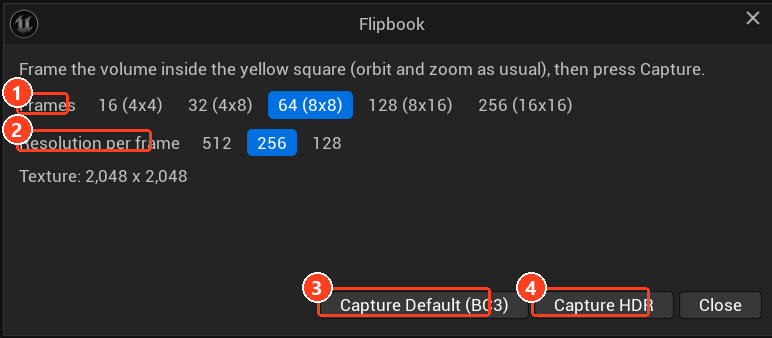
| Button | Output |
|---|---|
| (3) Capture Default (BC3) | Tonemapped, clamped to 0..1, with alpha. |
| (4) Capture HDR | Raw linear values, keeping all emissive range, with alpha on black. |
The asset is saved next to the volume as T_<type>_<asset>_Flipbook.
Your assets are finished. The last stage is making them run within budget.